What is a payment link? How to create one and get paid without building a checkout
What a payment link is, how to create a payment link in the dashboard or API, where to share it, how to cap it, and when to use the checkout API.
On this page
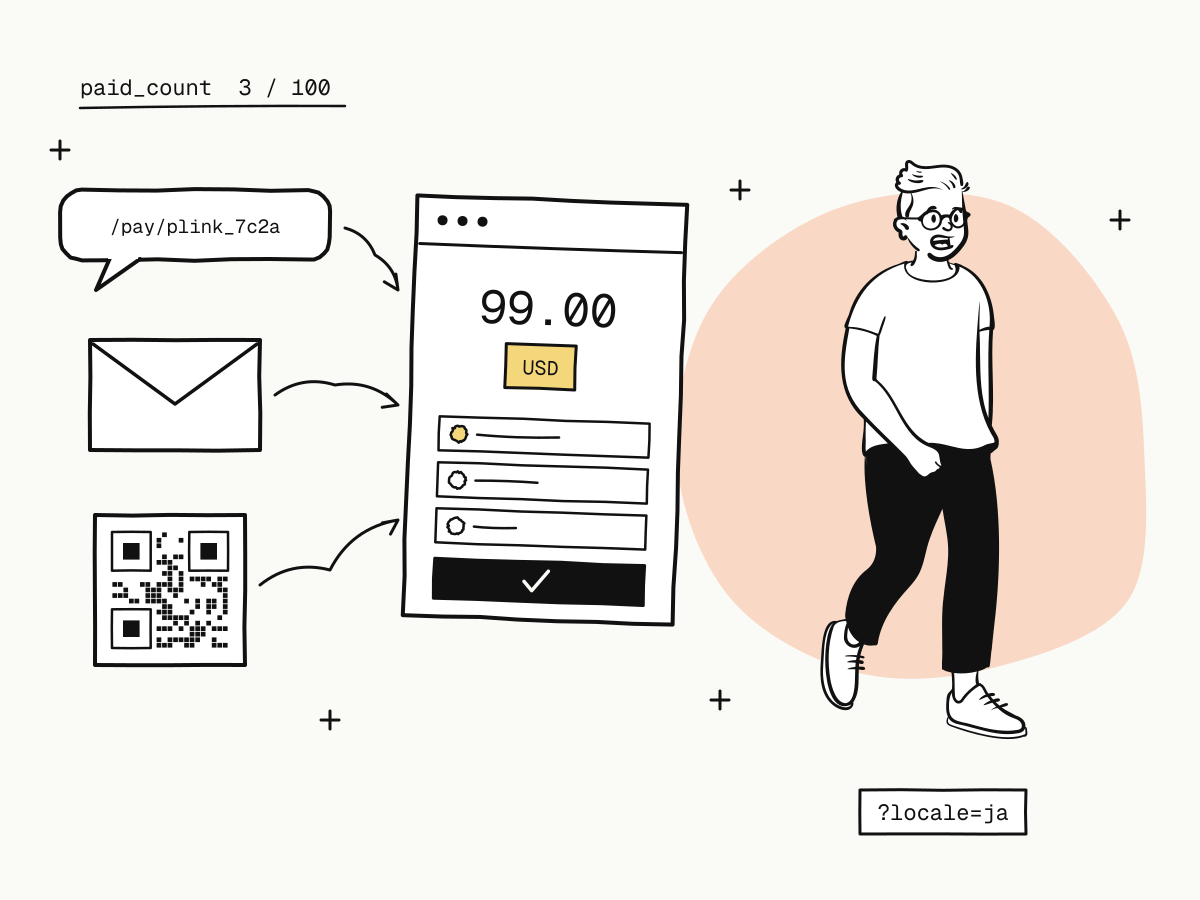
A payment link is a URL that opens a ready-made checkout for a fixed amount. You create the link once, send it to buyers by email, chat or social media, and each buyer who opens it can pay by card or wallet — with no checkout to build and no code to write. That makes a payment link the quickest way for a small business, a freelancer or a new product to start accepting payments online.
This guide explains how a payment link works, how to create a payment link in the KukoPay dashboard or through the API, where to share it, how to limit and stop it, and when you should move from links to the checkout API.
How does a payment link work?
On KukoPay a payment link is a stable address such as https://checkout.kukopay.com/pay/plink_7c2a41e9d8b30f56. Behind it:
- Every visit creates a new order and sends the buyer to the checkout. One link can therefore collect any number of payments, and each payment is an ordinary order with its own
trade_no, settled, refunded and notified exactly like an order created by the API. - A returning buyer gets their own order back. If the same browser reopens the link while its earlier order is still unpaid and has more than 10 minutes left, the buyer returns to that order instead of starting another — so a buyer who left for a wallet or 3D Secure and came back cannot end up paying twice.
- Two counters keep it honest:
used_countcounts orders the link has created (visits),paid_countcounts successful payments.
Visits where nobody tried to pay are still orders and expire with their checkout link. The dashboard's order list hides them by default; tick Include payment link visits nobody paid to see them.
How to create a payment link
In the dashboard
Open Payment links, choose the currency, enter the amount and, optionally, the item name buyers see and a payment limit, then click Create link. Copy the link from the list. The page also lets you pick the checkout language before copying, and disable or re-enable a link later.
Through the API
curl -X POST "https://api.kukopay.com/v1/payment_links" \
  -H "X-Api-Key: $KUKOPAY_API_KEY" \
  -H "Content-Type: application/json" \
  -d '{
    "amount": 9900,
    "currency": "USD",
    "subject": "Pro plan, 1 year",
    "max_uses": 100,
    "expires_at": "2026-12-31T23:59:59Z",
    "metadata": { "campaign": "winter-2026" }
}'| Field | What it does |
|---|---|
amount | The price per payment, as an integer in the minor unit: 9900 is $99.00 |
currency | USD, HKD or CNY; a live link can use only the currencies enabled for your account |
subject | The title buyers see at checkout |
max_uses | The most successful payments the link will take; omit for no limit |
expires_at | When the link stops working; omit to keep it open |
notify_url | Where this link's orders are notified; a live link without one needs a webhook endpoint subscribed to payment.succeeded |
return_url | Where the buyer goes after paying; must be public HTTPS on a live link |
metadata | Your own keys, carried onto every order the link creates |
The response contains the url to share. Every field is described in the payment links API.
Where to share a payment link
A payment link works anywhere a URL does:
- email and invoices — a "Pay now" link next to the amount due;
- chat — WhatsApp, WeChat, Telegram or a support conversation;
- social media — a bio link, a post or a direct message;
- a website without a shop — behind a "Buy" button on a landing page;
- print — turn the URL into a QR code for a flyer or a counter.
Selling to more than one language? Add ?locale= with en, zh, ja, ko or de and send each audience its own version: …/pay/plink_7c2a41e9d8b30f56?locale=ja. The checkout is otherwise English and never follows the browser, and every version shares the same link, orders and counters.
How to limit or stop a payment link
max_usescounts payments, not visits. A link set to1is not used up by someone who opens it and leaves. If several buyers race for the last payment, the first one credited counts and the others are refunded in full automatically, withpayment.duplicate_refunded— your balance is never touched. A refund does not give a use back.expires_atcloses the link at a set time — useful for pre-orders, events and limited offers.- Disable it with
"status": "inactive"(or Disable in the dashboard) and buyers see a short notice instead of a checkout. The same notice covers a link that is unknown, expired or fully paid.
You can update a link's status, subject, max_uses, expires_at and metadata at any time.
Why can't you change a payment link's price?
Amount and currency are fixed once a link exists. A link that has already been shared must not be able to charge something different from the price the buyer was shown. To change the price, disable the old link and create a new one.
How do you know who paid?
A payment link needs no integration, but your system still has to learn about each payment:
- Webhooks. Each payment sends
payment.succeededto the link'snotify_urlor your webhook endpoints. Verify the signature and fulfil once — duplicate payment webhooks shows how. - Order numbers. Orders from a link have an
out_trade_nolikeplink_7c2a41e9d8b30f56_3(link id plus visit number), and theirmetadatacarrieskukopay_payment_link, so you can trace any payment back to the link and campaign. - Receipts. Every paid order has a printable receipt you can send the buyer — see receipts.
The buyer landing on your return_url is not proof of payment; return_url vs notify_url explains why.
Payment link vs checkout API: which should you use?
| Payment link | Checkout API (POST /v1/orders) | |
|---|---|---|
| Code needed | None | A server-side call per order |
| Price | Fixed per link | Set per order |
| One link, many buyers | Yes | No, one order per call |
| Your own order number | Generated from the link | Your out_trade_no |
| Best for | Invoices, deposits, a small catalogue, social selling, testing demand | A shop or SaaS with its own carts, plans and orders |
Many merchants start with links and add the API later; both use the same checkout, fees and balance. The API side is covered in how to accept international payments on your website.
What does a payment link cost?
Creating and sharing links is free; you pay only on successful payments, at the same rates as any other order. At standard pricing that is 3.5% plus a fixed fee by currency ($0.30 on USD, HK$2.35 on HKD, ¥2.00 on CNY), so a $99.00 card payment costs round(9900 × 3.5% + 30) = 377, or $3.77. Visits nobody paid cost nothing. Worked examples are in how cross-border payment fees are calculated.
Payment links for international buyers
A payment link opens the same checkout as everything else, so buyers abroad get cards, Apple Pay, Google Pay, PayPal, and Alipay and WeChat Pay for buyers in mainland China — whichever methods are enabled on your account. For a Chinese audience, send the ?locale=zh version; how to accept Alipay and WeChat Pay online covers the wallets in detail. No company yet? An individual can accept payments too, with the rules in accepting international payments as an individual.
Summary
- A payment link is a fixed-price URL that opens a checkout; every visit becomes its own order;
- create a payment link in the dashboard or with
POST /v1/payment_links, then share it anywhere a URL works; max_usescounts successful payments,expires_atand disabling close the link, and the price never changes;- learn about payments from webhooks, not from the redirect;
- move to the checkout API when each order needs its own price or order number.
Try it in the sandbox
Create a merchant account and request a test key. The sandbox needs no business verification.