How to accept payments on multiple websites with one merchant account
How to accept payments on multiple websites or stores with one merchant account: what each site gets of its own, what stays shared, and how to set it up.
On this page
If one business runs several websites — a main shop, a mobile app, a second brand, a regional store — you can usually accept payments on all of them with one merchant account, as long as every site belongs to the same verified business. What you want is for each site to be separate where it matters (keys, order numbers, webhooks, the name buyers see) and shared where it should be (verification, balance, fees, payouts).
This guide explains how to accept payments on multiple websites with one merchant account on KukoPay, what each website gets of its own, what stays shared, and when a second site needs its own account instead.
One merchant account or several?
Ask one question: is it the same legal business?
- Same business, several sites or brands → one account, one app per site (below). You are verified once, see one balance, and are paid out once.
- A different company — a separate legal entity, or someone else's business → its own account. Verification, balances and payouts belong to the legal entity, so they cannot be shared across companies.
Every site on the account should be one the verified business actually runs, selling within the category the account was approved for — the same rules apply to all of them. What is KYB verification explains what the account's verification covers.
Apps: one per website, under one account
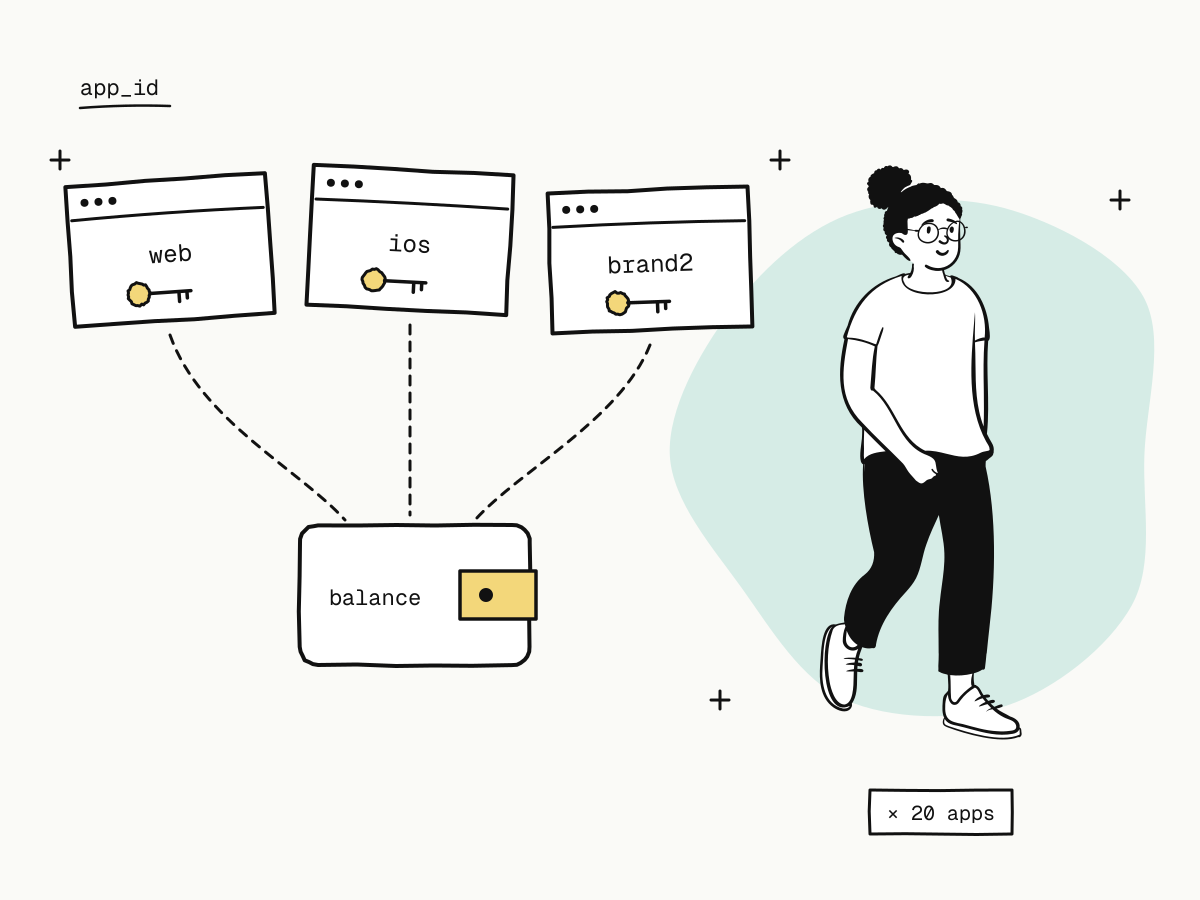
On KukoPay a merchant account holds up to 20 apps, one per integration — a web shop, an iOS app, a second brand. Each app is its own integration; the account behind them is shared.
| Belongs to each app | Shared by the whole account |
|---|---|
| API keys (several per environment) | Business verification |
The callback secret that signs its orders' notify_url | Balances and the ledger |
| Webhook endpoints | Fees and rates |
| IP allowlist | Payment limits |
Epay merchant ID (pid) | Payouts and settlement accounts |
| Checkout name, logo and brand colour (optional) | The team and its roles |
| Its own orders, refunds, disputes, payment links and events | Rate limits |
There is no separate balance or payout per app, by design: apps are integrations of one business, not sub-merchants.
What each website gets of its own
Its own keys — and its own data
A key belongs to one app and sees only that app's objects. A web shop's key cannot read the iOS app's orders; asking for another app's order answers 404, as if it did not exist. A key leaked from one site cannot touch another's data, and rotating it affects one site only — see API key rotation.
The account's balance and balance transactions are readable by any app's key, because the money is the account's.
Its own order numbers
out_trade_no, out_refund_no and Idempotency-Key are unique per app. Two sites can both have an order 1001 without colliding — no need to prefix order numbers by site.
Its own webhooks
Each app has its own webhook endpoints, and an order's events go to its own app's endpoints (plus any account-wide endpoint you set up in the dashboard). The shop's fulfilment server never receives the mobile app's events. How endpoints receive and retry events is in payment webhook not received.
Its own checkout branding
Under Business name & branding, each app can override the account's public name, logo and brand colour; anything left empty falls back to the account's. Buyers of your second brand see that brand at checkout, not your company name — see what is a hosted payment page.
How to set up a second website
- Create an app. Use the app switcher at the top of the dashboard sidebar (Switch app → Create app), or Settings → Apps. Name it after the site — "Web shop", "iOS app".
- Issue its keys under Developers → API keys, while that app is selected. A new app starts with none.
- Add its webhook endpoint and, if its servers have fixed IPs, its IP allowlist.
- Set its branding if it should look different from the account default.
- Test it in the sandbox with its
kuko_test_key before issuing a live one — test credit card numbers lists the scenarios.
Working with apps in the dashboard
The app is a context in the dashboard, like the environment. Pick an app in the switcher and the pages that belong to an app follow it: the overview's figures and recent orders, Orders & refunds, disputes, payment links, and everything under Developers — API keys, webhooks, events, logs, epay and the sandbox. Pages that belong to the account do not change: the wallet, payouts and settings.
Every account has a default app, which takes test orders created in the dashboard and payment links created without an app. It cannot be disabled.
Retiring a website
Disable its app under Settings → Apps. It can no longer create orders — the API, epay and payment links all refuse with 403 app_disabled — while its existing orders can still be looked up, refunded and notified. Nothing is deleted, and you can enable it again later.
Things that stay account-wide
- Rate limits are per account: all apps share the same per-minute quota, so a runaway job on one site can slow the others — see API rate limits.
- Payment limits, where the account has them, count orders from every app together.
- Reconciliation happens on one ledger. Every order carries its
app_id, so you can split sales by site, but the balance and payouts are one — payment reconciliation covers the routine.
Summary
- One business with several websites can accept payments on all of them with one merchant account; a different company needs its own;
- create one app per website: each gets its own keys, data, order numbers, webhooks, IP allowlist and optional branding;
- verification, balance, fees, limits, payouts and the team stay shared — there is no per-app balance;
- the dashboard switches by app like it switches by environment;
- disabling an app stops new orders and keeps existing ones working.
Try it in the sandbox
Create a merchant account and request a test key. The sandbox needs no business verification.