Payment dashboard user roles: who on your team should refund, pay out and manage API keys
How payment dashboard user roles work: owner, admin, developer and viewer permissions, inviting your team safely, and who should be able to move money.
On this page
Payment dashboard user roles decide who on your team can see what — and, more importantly, who can move money. A payment account belongs to the company, not to one person, but sharing a single login means everyone can refund, change the payout account and read the API keys. Roles let each person do their job and nothing more.
This guide explains the four user roles on KukoPay, what each can do, how to invite people safely, and how to divide refunds, payouts and API keys across a team.
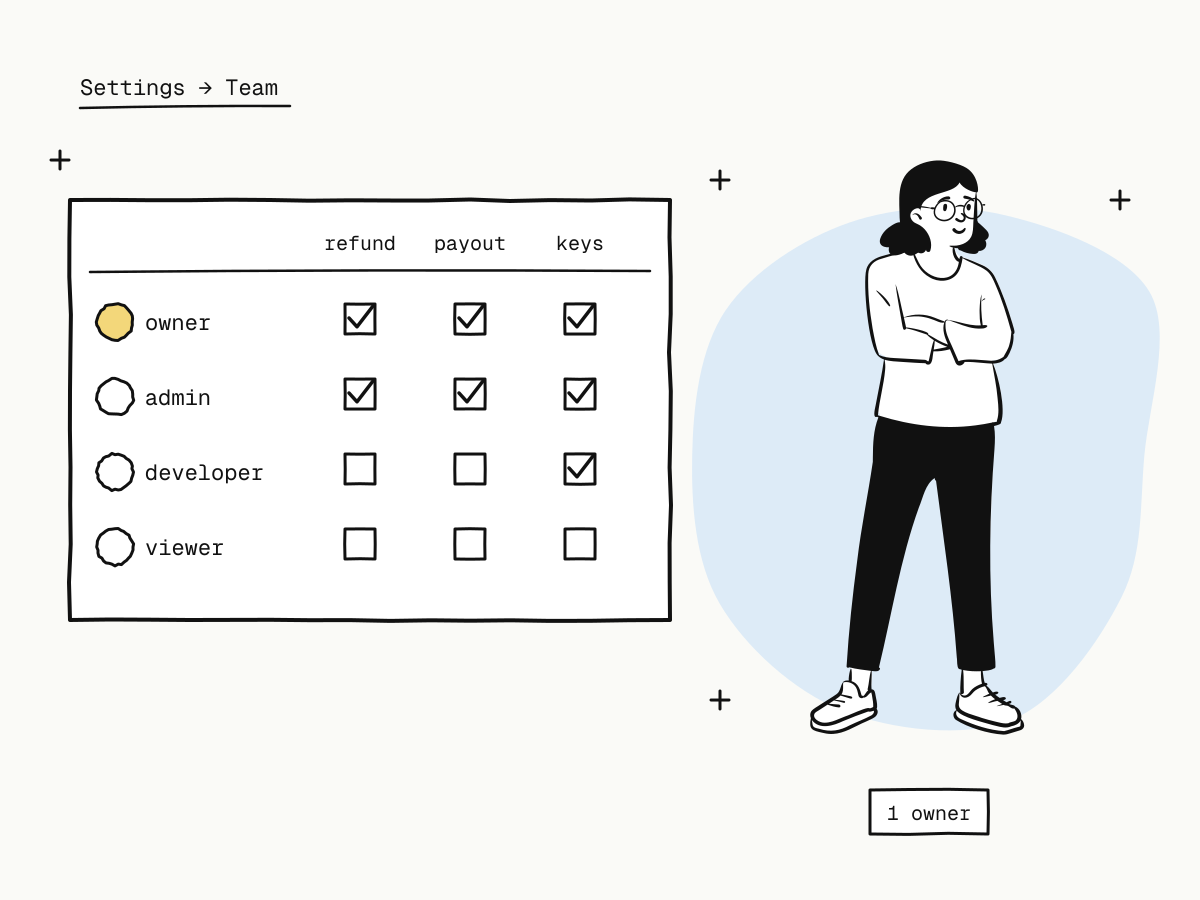
The four payment dashboard roles
| Role | For | Can do |
|---|---|---|
| Owner | The account's legal representative | Everything, including submitting business verification, requesting payment methods and transferring ownership |
| Admin | The person running day-to-day operations | Refunds, disputes, settlement accounts and payouts, managing members, branding and all developer settings |
| Developer | The engineer doing the integration | API keys, webhooks, payment links and sandbox tools — cannot move money |
| Viewer | Finance and reconciliation | Read orders, ledger, disputes, payouts and logs, and export CSV |
Each account has exactly one owner.
Permissions are checked by the server on every request, not just hidden in the interface: a developer who calls the refund endpoint behind the dashboard is refused, just as the missing button suggests.
Who can do what
| Action | Owner | Admin | Developer | Viewer |
|---|---|---|---|---|
| View orders, ledger, disputes, logs; export CSV | ✓ | ✓ | ✓ | ✓ |
| Refund an order, respond to or accept a dispute | ✓ | ✓ | ||
| Add settlement accounts, request payouts | ✓ | ✓ | ||
| API keys, webhook endpoints, payment links | ✓ | ✓ | ✓ | |
| Business name, logo and brand colour | ✓ | ✓ | ||
| Invite, re-role and remove members | ✓ | ✓ | ||
| Submit business verification, request payment methods, transfer ownership | ✓ |
Two consequences worth noting:
- A developer can build the whole integration — keys, webhooks, payment links — without being able to refund or withdraw a cent.
- Refunds and payouts are the money-moving actions, held by owners and admins only. Keep that group small.
How to invite team members safely
Owners and admins invite people under Settings → Team: enter their email and choose a role.
- An invitation link expires after 7 days and works once.
- It must be accepted while signed in with the email address it was sent to — a forwarded link does not work for anyone else.
- Inviting the same address again cancels the earlier link.
- A person without an account can sign up from the link and is brought back to the invitation.
Because a login can belong to one merchant account at a time, someone who already runs their own account may need to accept with a different email address.
Changing roles, removing people and transferring ownership
- Owners and admins can change another member's role or remove them.
- Any member except the owner can leave the account from the team page.
- The owner can transfer ownership to any member. The new owner takes over, and the previous owner becomes an admin — who can then be re-roled, removed, or leave.
- The owner cannot simply leave; ownership has to be transferred first. A forgotten password is a matter for the platform's support, not a reason to transfer.
When someone leaves the company, remove them the same day — and if they had access to API keys, rotate those too: see API key rotation.
How to set up roles for a typical team
- Founder or legal representative → owner. Submits verification, requests payment methods.
- Operations or finance lead → admin. Handles refunds, disputes and payouts.
- Engineers → developer. Integrate, manage keys and webhooks, test in the sandbox.
- Accountant, support or reconciliation → viewer. Look up orders, export CSV — see payment reconciliation.
Keep the number of owners and admins — the people who can move money — as small as the work allows, and ask everyone who can refund or pay out to turn on two-step sign-in (merchant account security).
Roles and apps are different things
Roles are about people; apps are about integrations. A member's role applies to the whole account, including every app — a developer can manage keys for every app, a viewer can read every app's orders. If you run several websites, apps keep their keys and data separate from each other — see accepting payments on multiple websites with one account.
Summary
- Payment dashboard user roles limit each person to what their job needs;
- owner does everything; admin runs operations including refunds and payouts; developer integrates without moving money; viewer reads and exports;
- invitations expire in 7 days, work once, and only for the invited email address;
- ownership is transferred, never abandoned; the old owner becomes an admin;
- keep the money-moving group small, remove leavers the same day, and pair roles with two-step sign-in.
Try it in the sandbox
Create a merchant account and request a test key. The sandbox needs no business verification.