Checkout payment methods: which ones to offer, and how to choose what buyers see
How to choose checkout payment methods: which to offer for each market, how to request more, how to hide some from the checkout, and how each is priced.
On this page
The payment methods at your checkout decide who can pay you. A buyer who does not see the method they use — their card, their phone wallet, Alipay — often leaves rather than look for another way to pay. Offering every method everywhere is not the answer either: a long list of options a buyer does not recognise makes the checkout harder to use.
This guide explains which checkout payment methods to offer for which buyers, how methods are enabled on KukoPay, how to request more, how to hide a method from the checkout without losing it, and how each method is priced.
Which payment methods can a checkout offer?
KukoPay's checkout supports six methods:
| Method | How the buyer pays | Fee group |
|---|---|---|
| Cards | Card form on the checkout | card |
| Apple Pay | Express button | card |
| Google Pay | Express button | card |
| Alipay | Redirected to Alipay to approve | local_wallet |
| WeChat Pay | Scans a QR code in WeChat | local_wallet |
| PayPal | Redirected to PayPal to approve | other |
Apple Pay and Google Pay are settled through the card networks, so they share the card fee group; Alipay and WeChat Pay share one; PayPal has its own.
Which payment methods should you offer?
Start from where your buyers are and what they already use:
- Buyers in mainland China — Alipay and WeChat Pay first, then cards (including UnionPay). See how to accept Alipay and WeChat Pay.
- Buyers in Hong Kong — cards, Apple Pay and Google Pay, plus Alipay and WeChat Pay for visitors from the mainland. See how to accept HKD payments.
- International buyers — cards with Apple Pay and Google Pay as one-tap buttons; PayPal where your buyers expect it. See how to accept Apple Pay and Google Pay.
- Mobile-heavy traffic — wallet buttons save typing a card number on a phone.
Fewer, well-chosen methods beat a long list. The checkout also helps: it only shows methods that are enabled on your account and available for the order, so a buyer is never offered one that cannot take it.
How payment methods are enabled
- Sandbox — every method is available with no review, so you can try them all with test cards and test wallets — see test credit card numbers.
- Live — when your business verification is approved, the platform enables a base set of methods and sets their rates. Individual merchants start with cards only — see accepting international payments as an individual.
How to request more payment methods
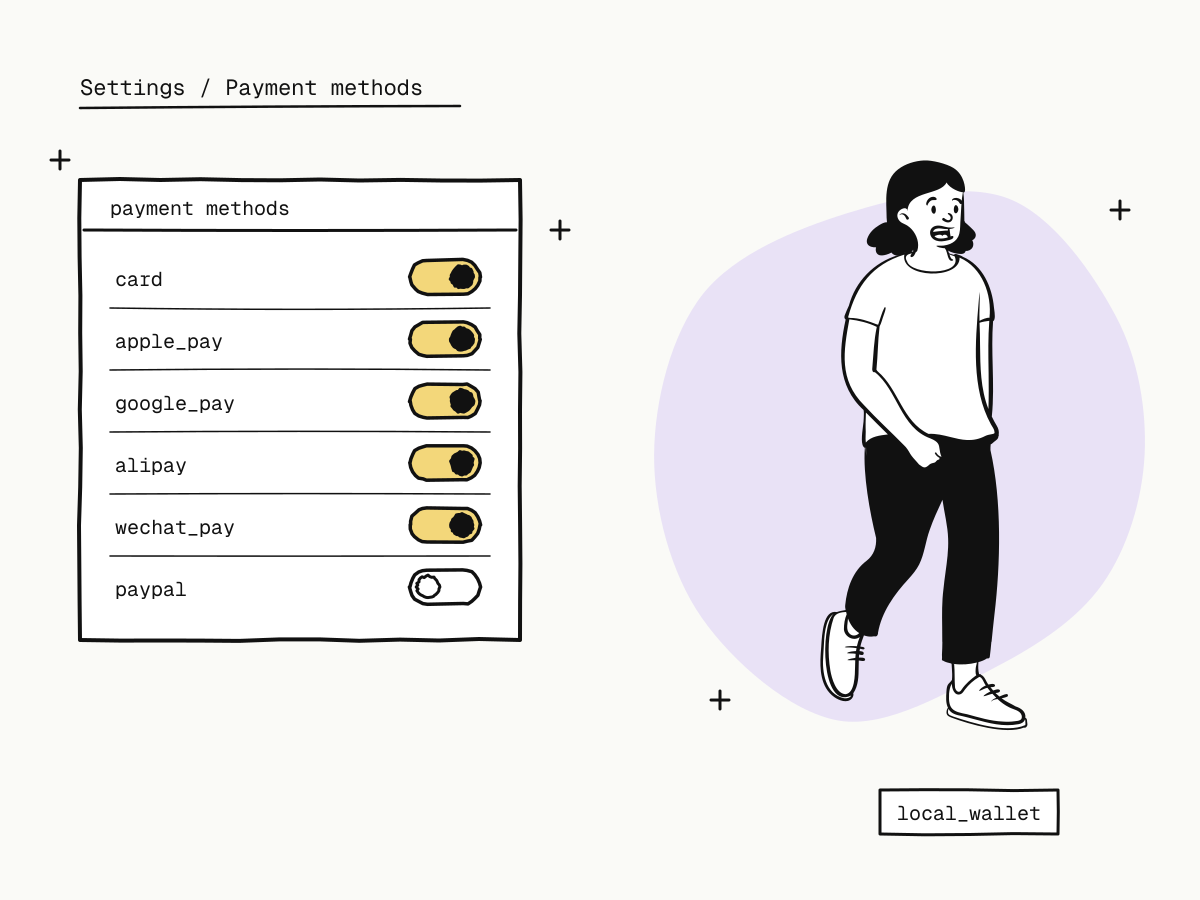
In the dashboard, open Settings → Payment methods and click Request next to a method you do not have yet, with a short description of your business case. Each method is requested and reviewed on its own:
| Status | Meaning |
|---|---|
| Enabled | Usable at the live checkout; shows its signed rate and a show/hide switch |
| Under review | Submitted; you can withdraw it before review |
| Not approved | Shows the reason; you can add detail and apply again |
| Not enabled | Not requested yet; shows the platform's reference rate |
When a request is approved, the platform sets that method's actual rate — which may differ from the reference — from the next payment on, and the rate applies to its whole fee group. The result is emailed to the account owner, admins and the business contact address. Only the account owner can submit or withdraw a request.
How to hide a payment method from the checkout
An enabled method has a switch. Turning it off hides it from the checkout; turning it back on restores it, with no review:
- it applies to both the sandbox and the live checkout, so you can preview the buyer's view in the sandbox;
- at least one method must stay shown — the last one cannot be switched off;
- it only affects payments created afterwards; a checkout a buyer already has open keeps its methods;
- hiding a method does not change its rate or its enabled status;
- the account owner or an admin can change it.
Typical reasons to hide one: a method your buyers never use, a temporary problem with fulfilling wallet orders, or testing whether a shorter list converts better.
How each payment method is priced
Standard pricing is the same for every fee group — 3.5% plus a fixed fee in the order's currency ($0.30, HK$2.35 or ¥2.00) — but signed rates can differ by group. The fee is decided by the method the buyer actually used, and the rate applied is recorded on the order's fee_details. See how cross-border payment fees are calculated.
Summary
- KukoPay's checkout offers cards, Apple Pay, Google Pay, Alipay, WeChat Pay and PayPal, priced in three fee groups;
- offer what your buyers already use: wallets for mainland China, cards and phone wallets internationally;
- the sandbox has every method; live starts with a base set at approval, and more are requested one by one under Settings → Payment methods;
- any enabled method can be hidden from the checkout without review, in sandbox and live alike, as long as one stays shown;
- the fee follows the method the buyer used, and the applied rate is recorded on the order.
Try it in the sandbox
Create a merchant account and request a test key. The sandbox needs no business verification.