V2Board payment gateway: accept card and wallet payments through the built-in EPay
How to set up a V2Board payment gateway with the built-in EPay method: gateway URL, merchant ID and key, the order timeout to choose, testing and fixes.
On this page
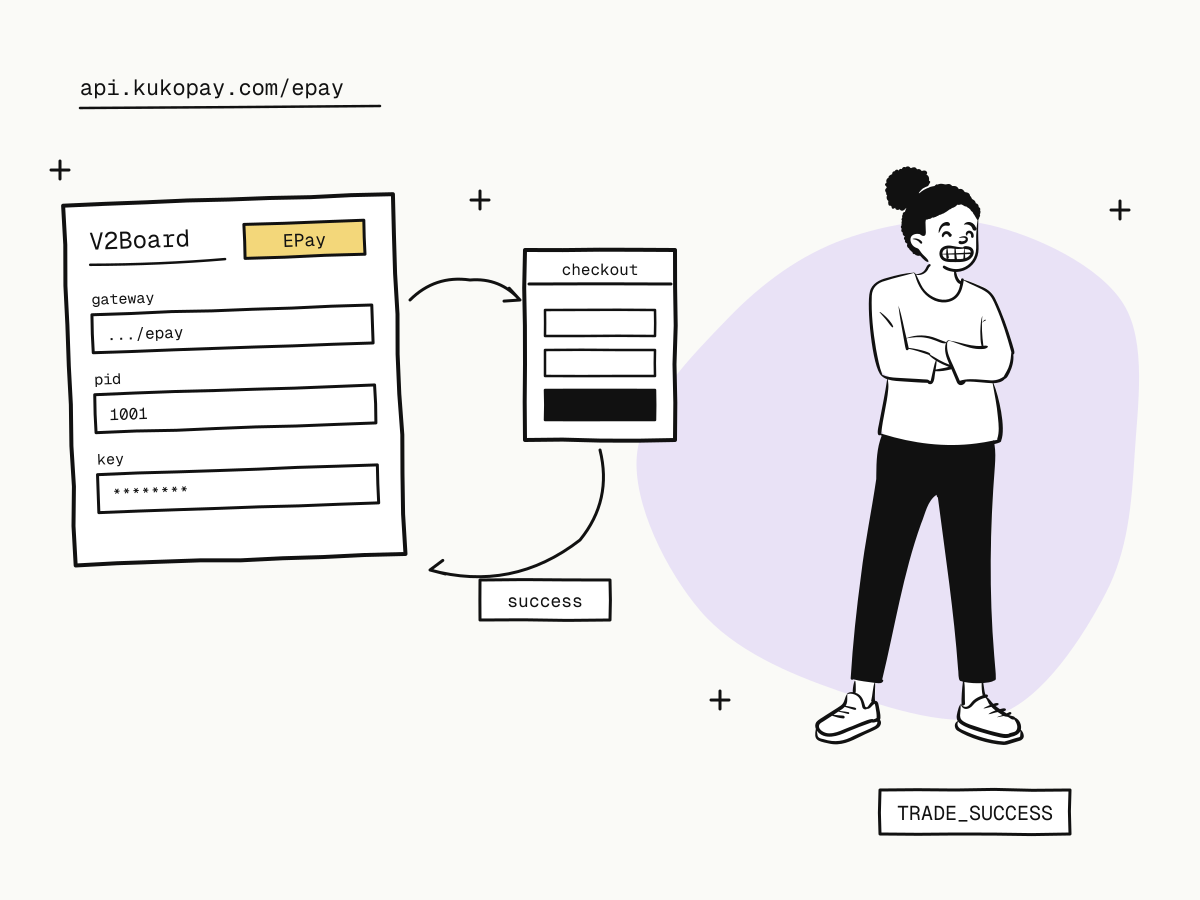
A V2Board payment gateway is whatever V2Board hands its users to when they pay for a plan. V2Board already includes an EPay payment method that speaks the epay (易支付) protocol, and KukoPay offers an epay-compatible gateway — so you can take card and wallet payments in V2Board by filling in three values, without installing a plugin or changing any code. Each payment becomes an ordinary KukoPay order, paid on the hosted checkout and reported back to V2Board when it succeeds.
This guide walks through setting up a V2Board payment gateway with KukoPay: enabling epay, the fields to fill in, choosing the order timeout, testing in the sandbox, and fixing the common problems. The same steps work for SSPanel and Dujiaoshuka (独角数卡).
What you need
- A V2Board site with its EPay payment method available in the admin.
- A KukoPay account. The sandbox works without review; live payments need business verification.
- Ideally a separate KukoPay app for the panel, so its orders, credentials and notifications are kept apart from your other business — see accepting payments on multiple websites.
How to set up the V2Board payment gateway
Enable epay in KukoPay
In the dashboard, switch to the app for V2Board, open Developers → Epay gateway, and enable it. You get a gateway URL (https://api.kukopay.com/epay), a numeric merchant ID (pid) and a 32-character merchant key, plus two settings: the collection currency and the order timeout. Sandbox and live each have their own pid and key.
Choose the currency
Epay's money field is a bare number with no currency, so orders are charged in the currency you choose here (USD, HKD or CNY; live only those enabled on your account). Make it the currency your V2Board prices are in.
Set the order timeout below V2Board's
V2Board cancels unpaid orders after 2 hours. Set KukoPay's order timeout shorter than that (it can be 5 minutes to 24 hours; the default is 30 minutes), so the checkout closes before V2Board cancels the order. More on this below.
Add the EPay method in V2Board
In V2Board's payment settings, add a payment method using EPay and enter the gateway URL, the merchant ID and the key. The payment type can be left empty — the checkout shows every method enabled on your account and the buyer chooses.
Pay one order in the sandbox
With the sandbox pid and key, place an order in V2Board and pay with the test card 4242 4242 4242 4242. The V2Board order should become paid. See test credit card numbers.
Switch to live
After approval, replace the merchant ID and key with the live ones. The pid alone decides the environment.
Why the order timeout matters
The epay protocol has no field for when an order expires, and V2Board cancels an unpaid order on its own clock. If KukoPay's checkout stayed open longer than that, a buyer could pay for an order V2Board has already cancelled — the notification arrives, but there is no order left to open. Keeping KukoPay's timeout shorter means the worst case is a buyer re-ordering, never a payment with nowhere to go.
Other systems need the same check: Dujiaoshuka defaults to 5 minutes, so set KukoPay's timeout to 5 minutes for it. For SSPanel, look up its order timeout and stay below it. A change applies to orders created after it. The reasoning is in the epay integration guide.
What V2Board is told, and when
- Only successful payments are notified. KukoPay sends V2Board a signed GET with
trade_status=TRADE_SUCCESSand expects the bodysuccess. Failures and expiries are never notified, because many epay clients check the signature but not the status and would read any notification as paid. - Retries. No
successwithin 10 seconds is retried after 30 seconds, 2 minutes, 10 minutes, 30 minutes and 2 hours — six attempts in all. - Return. After paying, the buyer returns to V2Board's return page with the same signed parameters; V2Board opens the order from the notification, not the return.
- Everything else — refunds, disputes, payouts — is handled in the KukoPay dashboard; V2Board does not need to support it.
V2Board payment troubleshooting
"Signature check failed" when ordering
The key is wrong, or the pid and key come from different environments. A key reset takes effect immediately, with no overlap — update V2Board right after resetting.
Paid, but V2Board did not open the order
Open the delivery history under Developers → Webhooks:
- V2Board answered something other than
success— its handler failed or rejected the signature; the response body says why. - Timeouts or connection errors — a firewall, CDN or WAF in front of V2Board is blocking the request.
Once fixed, redeliver from the history; the buyer does not pay again.
"The merchant has not been approved yet"
You are using the live pid before business verification is approved. Use the sandbox credentials until then.
Plugin, EPay or API?
For V2Board, EPay is the simplest path. Xboard — a V2Board fork — also has a dedicated KukoPay plugin built on the native API with HMAC-signed webhooks; see the Xboard payment plugin. For your own code, the direct API is the better choice — see payment gateway integration.
Summary
- V2Board's built-in EPay method connects to KukoPay's epay-compatible gateway with three values: gateway URL, merchant ID (
pid) and key; - the
piddecides the environment and the app; choose the collection currency in the dashboard; - set KukoPay's order timeout shorter than V2Board's 2-hour cancellation (5 minutes for Dujiaoshuka);
- only successful payments are notified, signed, and retried up to six times until V2Board answers
success; - most problems are a mismatched key or environment, or a firewall blocking notifications.
Try it in the sandbox
Create a merchant account and request a test key. The sandbox needs no business verification.